
Dantiver.com pop-ups are deceptive browser notifications linked to scams and malware risks. Learn how Dantiver.com works, why you are seeing these pop-ups, and how to remove them safely.
What Is Dantiver.com?
Dantiver.com is a suspicious and potentially harmful website associated with browser notification spam, scam advertisements, and malicious redirects. The site is designed to trick users into enabling push notifications that later deliver unwanted ads and unsafe links.
Unlike legitimate websites that request notification permission for updates or alerts, Dantiver.com uses deceptive tactics to gain access to your browser notifications. Once permission is granted, the site can continuously send intrusive advertisements and redirect users to harmful third-party pages.
According to cybersecurity awareness resources like Malwarebytes Labs, malicious notification spam websites have become a common tactic used by cybercriminals to deliver scam content and unwanted software.
Learn more about notification-based scams here:
https://www.malwarebytes.com/blog/news/2021/03/browser-notification-spam-what-it-is-and-how-to-stop-it
Why Am I Seeing Dantiver.com Pop-Ups?
Dantiver.com pop-ups usually appear after users unknowingly allow notification permissions. This often happens while browsing unsafe websites or clicking misleading prompts.
Common Causes of Dantiver.com Redirects
1. Clicking Fake Verification Messages
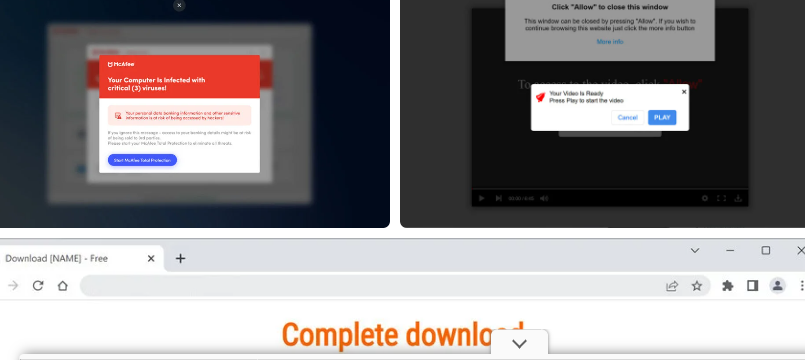
Dantiver.com often displays messages such as:
- Click “Allow” to verify you are not a robot
- Click “Allow” to continue watching
- Click “Allow” to download files
- Click “Allow” to access website content
These prompts are fake and are designed to trick users into enabling notifications.
2. Visiting Unsafe Websites
Illegal streaming, torrent platforms, and low-quality websites often contain malicious advertisements that redirect users to scam pages.
The Federal Trade Commission provides guidance on avoiding deceptive online ads here:
https://consumer.ftc.gov/articles/how-recognize-and-avoid-phishing-scams
3. Installing Free or Bundled Software
Some free applications include adware that modifies browser settings and triggers redirect behavior.
You can learn how bundled software works from Kaspersky’s security guide:
https://www.kaspersky.com/resource-center/threats/adware
4. Compromised Browser Extensions
Unverified browser extensions may inject unwanted ads and redirect users to suspicious websites like Dantiver.com.
Google provides safe browsing extension practices here:
https://support.google.com/chrome/answer/187443
How Dantiver.com Notification Scams Work
Notification scam websites follow a predictable pattern:
- The user lands on a suspicious webpage through redirects or ads.
- The site displays fake verification messages.
- The user clicks “Allow.”
- The site gains permission to send push notifications.
- The user begins receiving spam pop-ups and scam alerts.
These notifications may appear even when the browser is closed because push notifications operate through the browser’s background services.
You can read about how push notifications work here:
https://developer.mozilla.org/en-US/docs/Web/API/Push_API
Risks of Dantiver.com Pop-Ups
Allowing notifications from suspicious websites exposes users to multiple cybersecurity risks.
Exposure to Phishing Scams
Notifications often redirect users to fake login pages or fraudulent investment platforms. These pages attempt to steal personal or financial data.
Learn how phishing attacks operate here:
https://www.cisa.gov/news-events/news/avoiding-social-engineering-and-phishing-attacks
Malware and Adware Downloads
Some pop-ups promote fake software updates or security tools that install malware on your device.
Microsoft explains how malware spreads here:
https://support.microsoft.com/windows/how-to-recognize-and-avoid-malware
Identity Theft Risks
Clicking scam links can expose personal details, login credentials, or payment information.
Identity theft prevention tips are available here:
https://www.identitytheft.gov
Performance and Privacy Issues
Persistent notification spam can slow browser performance, increase data usage, and track browsing behavior.
How to Remove Dantiver.com Pop-Ups
Removing Dantiver.com pop-ups requires disabling notification permissions and scanning your device for potential threats.
Remove Dantiver.com Notifications From Google Chrome
- Open Google Chrome.
- Click the three-dot menu in the top-right corner.
- Select Settings.
- Navigate to Privacy and Security.
- Click Site Settings.
- Select Notifications.
- Locate Dantiver.com and click Remove or Block.
Chrome notification management guide:
https://support.google.com/chrome/answer/3220216
Remove Dantiver.com Notifications From Mozilla Firefox
- Open Firefox.
- Click the menu icon.
- Select Settings.
- Click Privacy and Security.
- Scroll to Permissions.
- Click Notifications and select Settings.
- Remove Dantiver.com from the list.
Firefox notification support page:
https://support.mozilla.org/en-US/kb/push-notifications-firefox
Remove Dantiver.com Notifications From Microsoft Edge
- Open Microsoft Edge.
- Click the three-dot menu.
- Select Settings.
- Click Cookies and Site Permissions.
- Select Notifications.
- Remove or block Dantiver.com.
Edge notification support page:
https://support.microsoft.com/microsoft-edge/manage-website-notifications
Scan Your Device for Adware and Malware
After removing notification permissions, it is strongly recommended to perform a full malware scan to detect hidden threats.
Trusted Malware Removal Tools
Malwarebytes
https://www.malwarebytes.com
HitmanPro
https://www.hitmanpro.com
AdwCleaner
https://www.malwarebytes.com/adwcleaner
You can also learn how malware scanners work here:
https://www.avast.com/c-how-does-antivirus-work
Reset Your Browser (If Pop-Ups Continue)
If notification removal does not solve the problem, resetting your browser can remove malicious extensions and restore default settings.
Chrome reset instructions:
https://support.google.com/chrome/answer/3296214
Firefox reset instructions:
https://support.mozilla.org/en-US/kb/refresh-firefox-reset-add-ons-and-settings
Edge reset instructions:
https://support.microsoft.com/microsoft-edge/restore-settings
How to Prevent Notification Spam and Redirect Scams
Practicing safe browsing habits can significantly reduce exposure to scam websites.
Only Allow Notifications From Trusted Websites
Legitimate websites rarely require notification permission to access content.
Avoid Suspicious Ads and Streaming Platforms
Unauthorized streaming sites often contain malicious advertisements and redirect scripts.
Download Software From Official Sources
Always download programs directly from verified developer websites or trusted app stores.
Keep Browsers and Operating Systems Updated
Security updates help fix vulnerabilities that scammers may exploit.
Learn about browser security updates here:
https://staysafeonline.org
Use Reliable Security Software
Installing trusted antivirus or anti-malware protection helps block malicious redirects and pop-ups.
Frequently Asked Questions
Is Dantiver.com a Virus?
Dantiver.com is not a virus itself but is classified as a deceptive website used to distribute spam notifications, scam advertisements, and potentially harmful links.
Why Do Dantiver.com Pop-Ups Appear Even When My Browser Is Closed?
Push notifications operate through background browser services, allowing pop-ups to appear even when the browser is not actively in use.
Can Dantiver.com Steal Personal Information?
The website may redirect users to phishing pages that attempt to collect sensitive information such as login credentials or payment details.
Final Verdict
Dantiver.com pop-ups are part of a growing trend of browser notification scams used to spread advertisements, phishing attempts, and malicious downloads. While these pop-ups can be intrusive and potentially dangerous, they can usually be removed by revoking notification permissions and scanning your device for adware.
Maintaining strong cybersecurity habits, avoiding suspicious websites, and regularly reviewing browser permissions are essential steps to staying safe online.
Related Scam Alerts and Reviews
- Egad-Blue.com Review
- 52casino.cc Scam Review
- Eelry Jewelry Review
- Experflas.co.in Pop‑Ups
- How to Remove Miderateae.com Pop‑Ups
- Ubanan.com Review
- How to Remove Cenvonero.co.in Pop-Ups
- Hobocooundiness.com Pop‑Ups
- Capital One Fraud Department Phone Scam
- Cheerstash.com Review
- News-gojaxa.cc Pop-Up Ads
- Prokastking.shop Review
- iPureHear Hearing Aids Review
- Bettyelane Review
