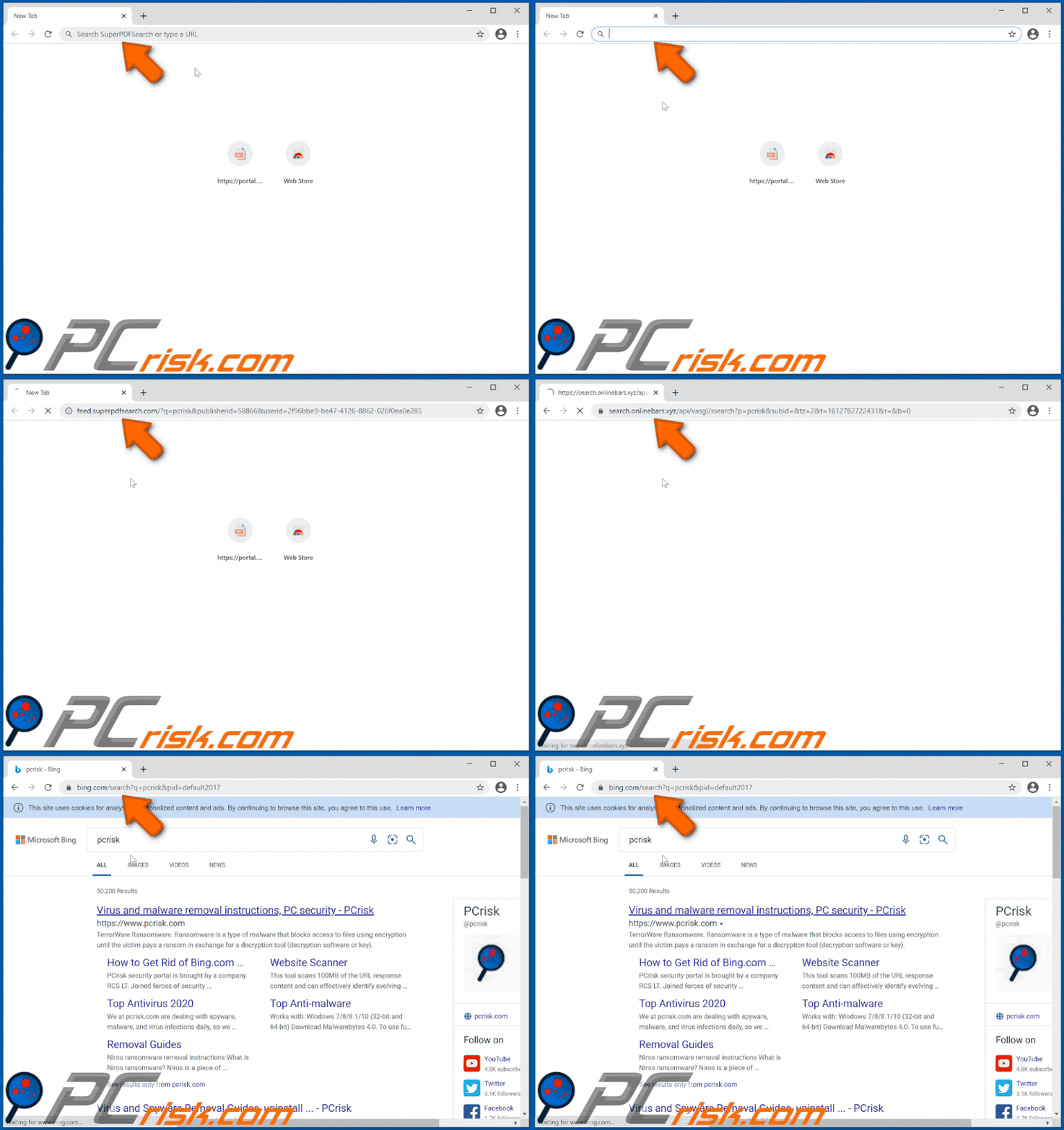
The SearchSuperPDF.com redirect is a browser hijacker that modifies your browser’s homepage, default search engine, and new tab page without clear user consent. It is typically distributed through bundled software installers, deceptive ads, and malicious browser extensions posing as PDF utilities.
Beyond being annoying, this hijacker can expose you to privacy risks by tracking browsing activity, injecting advertisements, and redirecting searches through questionable third-party engines.
What Is the SearchSuperPDF.com Redirect?

4
SearchSuperPDF.com is linked to potentially unwanted programs (PUPs) and browser hijackers. Once active, it may:
- Replace your homepage and default search engine
- Redirect searches through unknown websites
- Display intrusive ads and pop-ups
- Install additional unwanted extensions
- Collect browsing data for advertising purposes
These threats often disguise themselves as helpful tools such as “free PDF converters” or “document managers.”
How Did SearchSuperPDF Get Installed?
Most victims install the hijacker unknowingly. Common distribution methods include:
- Bundled freeware installers
- Fake software update alerts
- Malicious advertising networks
- Phishing pages offering free tools
- Suspicious browser extensions
To stay safe, download software only from official vendor websites and avoid third-party download portals.
How to Remove SearchSuperPDF.com Redirect
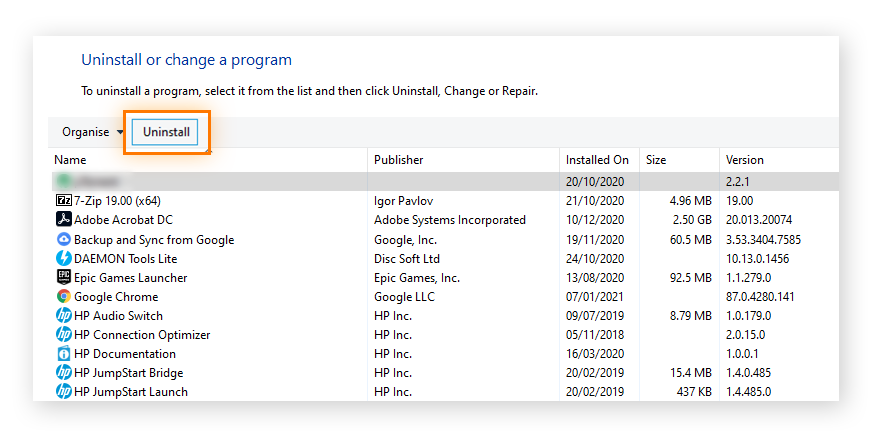
Step 1: Uninstall Suspicious Programs (Windows)
- Press Windows + R, type appwiz.cpl, then press Enter
- Locate recently installed or unknown programs
- Uninstall suspicious entries, especially PDF-related software
You can also follow Microsoft’s official guide for removing apps via the Windows Control Panel on the Microsoft support website.
Step 2: Remove Malicious Browser Extensions
Browser hijackers rely heavily on extensions to maintain persistence.
Google Chrome
- Open Chrome → Menu → Extensions
- Remove unfamiliar add-ons
- Restart the browser
Refer to the extension management documentation from Google for detailed steps.
Mozilla Firefox
- Menu → Add-ons and Themes
- Remove suspicious extensions
- Restart Firefox
Guidance is available on the Mozilla support pages.
Microsoft Edge
- Menu → Extensions
- Disable or remove unknown items
See official instructions from Microsoft Edge support.
Step 3: Reset Browser Settings to Default
Resetting removes hidden changes made by the hijacker.
Chrome Reset
Settings → Reset settings → Restore original defaults
Official instructions are available on the Google Chrome Help Center.
Firefox Refresh
Help → More Troubleshooting Information → Refresh Firefox
Detailed steps can be found via Mozilla.
Edge Reset
Settings → Reset settings → Restore default values
Follow guidance from Microsoft.
Step 4: Scan Your Computer for Malware
Running a full system scan is critical to remove remaining malicious files and registry entries.
Recommended security tools include:
- Built-in Windows Security (Microsoft Defender) from Microsoft
- Reputable anti-malware solutions from trusted vendors
Quarantine or remove all detected threats, then restart your device.
Step 5: Check Browser Shortcut Hijacking
Some hijackers alter browser shortcuts to force redirects.
- Right-click your browser shortcut → Properties
- In the Target field, ensure it ends only with:
- chrome.exe
- firefox.exe
- msedge.exe
- Remove any added website URL after the .exe path
Advanced Removal (If Redirect Persists)
If the problem continues:
- Clear browser cache and cookies
- Check installed startup programs
- Reset DNS settings
- Scan for rootkits using advanced security tools
You may also consult cybersecurity guidance from organizations like Cybersecurity and Infrastructure Security Agency for best practices.
How to Prevent Browser Hijackers
- Download software only from official sources
- Avoid pirated or cracked programs
- Use reputable antivirus protection
- Keep browsers and operating systems updated
- Review extension permissions carefully
- Enable pop-up blocking
Final Thoughts
The SearchSuperPDF.com redirect is more than a minor inconvenience — it can compromise your privacy and security. Removing suspicious programs, deleting malicious extensions, resetting browser settings, and performing a thorough malware scan will eliminate the threat completely.
Staying cautious with downloads and browser extensions is the best defense against future infections.